
Is WebRTC Leaking Your Real IP? How to Test and Stop It in Chrome and Firefox
You set up a proxy and checked your IP. The site shows the proxy's address. Job done? Not quite. Your browser has a second way of talking to the internet, and it doesn't use your proxy at all. It's called WebRTC, and it can hand your real IP to any website that asks.

Your proxy is working. So where does the leak come from?
Someone picks a proxy from our list, say a German one, and checks their IP. The page says Germany. Then they open a leak test, and there it is: their home IP, next to the German one. The proxy didn't fail. Something else went around it.
That something is WebRTC, the browser feature behind Google Meet, Discord voice calls, and WhatsApp Web calls. To set up a call, your browser asks a STUN server one question: "What's my public address?" The catch is that the question travels over UDP, and a normal HTTP proxy only carries web traffic. It never sees the STUN packet. So the answer comes straight back with your real IP, and any website can read it.
When I tested this with a proxy from our own list, the IP check showed the proxy while the leak test showed both: the proxy's address on the web side, my real address on the WebRTC side.
Say your home IP is 203.0.113.45 and your proxy is 198.51.100.23. You open an IP checker and it says 198.51.100.23. Good. Then you open the leak test and it lists a "server reflexive" address of 203.0.113.45. That's the leak. Ignore local addresses such as 192.168.1.5, or names ending in .local: Chrome and Firefox mask those these days. Only a public address that isn't your proxy's counts.
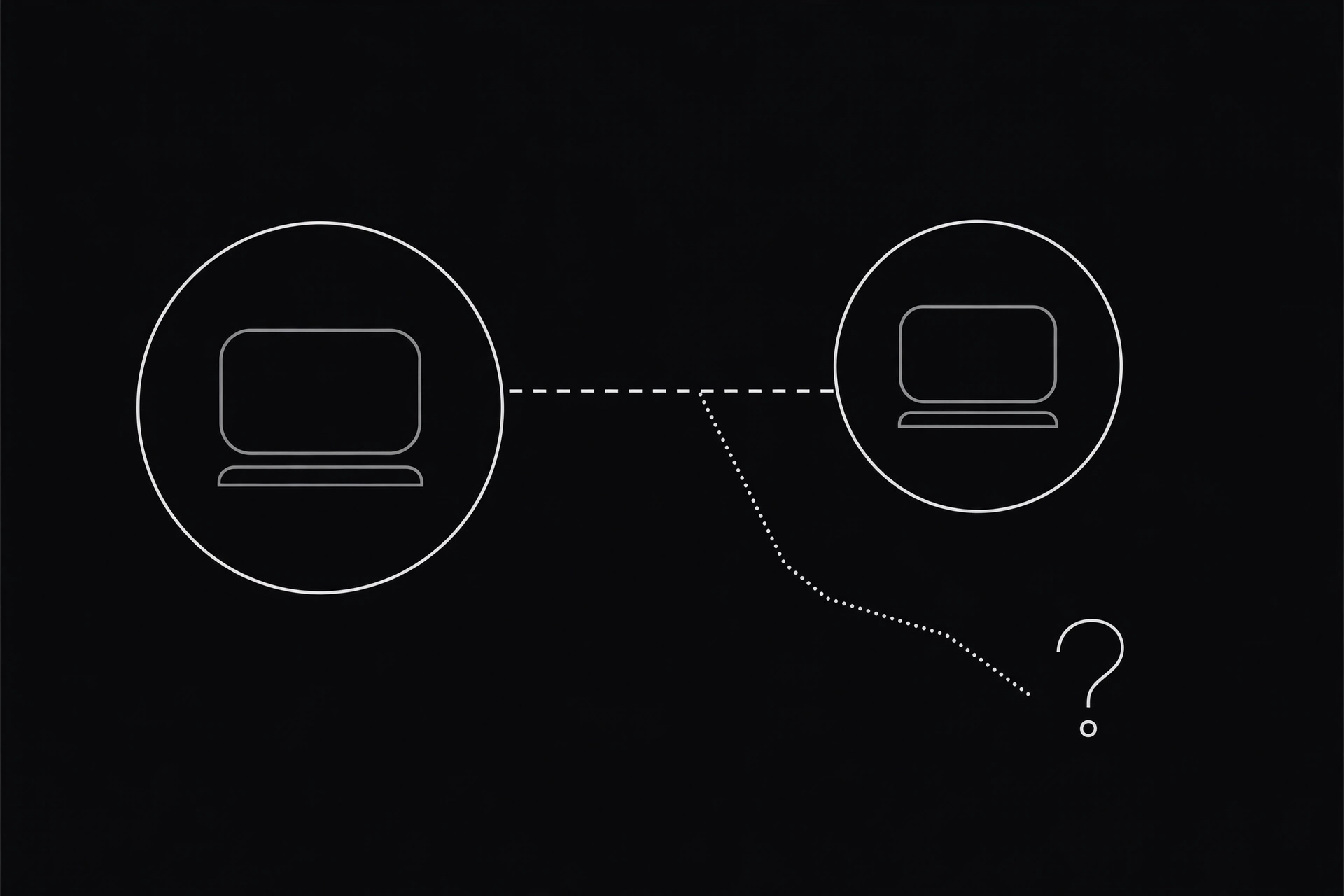
What a WebRTC leak actually is, in plain words
WebRTC needs a path between two callers, so it gathers "ICE candidates": the network addresses your device could be reached on. One kind is your own device address. The other, a server reflexive candidate (srflx for short), is your public address as a STUN server sees it. A leak test page does the same thing a tracker would: it asks your browser to gather candidates and reads the list.
Here's my honest take: most guides about this are written for VPN users, and they miss the proxy angle completely. A VPN at least tries to carry all your traffic. A browser proxy never promised that. It only promised to carry your web requests. So if you use a proxy and never check WebRTC, you're guarding the front door while the side window stands open. The fix is on the browser side, not the proxy side, because the proxy can't touch traffic it never sees. For the technical background, MDN's WebRTC API docs explain it well.
Prefer watching? This video covers what a proxy hides, what it doesn't, and the two-minute leak test.
Test it in two minutes (before you change anything)
Don't change a setting yet. Test first, so you know what "fixed" looks like.
- First, find your real IP: turn the proxy off, open What Is My IP, and write the number down.
- Turn the proxy back on. Grab a fresh one from the proxy list, or pick a country on the locations page, and run it through the Proxy Checker first. A dead proxy makes the whole test meaningless.
- With the proxy still on, open the leak test.
- Read the WebRTC section. If the public address matches the proxy's IP, you're fine. If it matches the number from step 1, WebRTC is leaking.
That's the whole test. Two minutes, no installs, and now you have a before-and-after number you can trust.
Fix it in Firefox (the easy one)
Firefox is the only major browser with a real off switch for WebRTC.
- Type about:config in the address bar and accept the warning.
- Search for media.peerconnection.enabled and toggle it to false. WebRTC is now dead, and so is the leak, but video calls stop working too.
But hold on. Killing WebRTC outright is a blunt fix, and most people still need Meet or Discord sometimes. There's a smarter middle setting: search for media.peerconnection.ice.proxy_only_if_behind_proxy and set it to true. Firefox then runs WebRTC through the proxy whenever one is set. Your calls keep working, and the STUN answer comes back with the proxy's address instead of yours. Retest after changing either setting: the leak test should now show the proxy's IP, or no public WebRTC address at all.

Fix it in Chrome (there's no off switch, so use an extension)
Chrome gives you no toggle: Google treats real-time calling as a core feature. Older guides point at a chrome://flags option called "Anonymize local IPs exposed by WebRTC". That flag is gone. Don't waste time looking for it.
The reliable fix is an extension that controls WebRTC routing. Install WebRTC Leak Prevent or WebRTC Control from the Chrome Web Store, open its settings, and set it to block non-proxied UDP traffic. That forces WebRTC to go through your proxy or nowhere at all. uBlock Origin's "Prevent WebRTC from leaking local IP addresses" setting helps too, but it only hides your local address, not your public one.
On a managed machine, or if you launch Chrome from a script, use the enterprise policy WebRtcIPHandling set to disable_non_proxied_udp, or the Chromium launch flag --force-webrtc-ip-handling-policy=disable_non_proxied_udp. It does the same job with no extension, and it survives browser updates that would reset a flag.
One warning: don't install the first WebRTC extension with a few hundred users and no reviews. Pick one that's open source and widely used. An extension that touches your network traffic is exactly the kind of thing you don't want to get wrong.
What the fix breaks (and how to live with it)
Turning WebRTC off breaks Google Meet, Discord voice, and in-browser calls. Normal browsing and streaming still work fine, since those don't use WebRTC. That's why the Firefox proxy-only setting and the Chrome "block non-proxied UDP" option beat a kill switch: they stop the leak while your calls keep working. If you do kill WebRTC outright, keep a second browser profile for calls.
The 30-second routine that keeps you safe
A leak test is a snapshot, not a one-time fix. Run it again after every change, and whenever you switch to a new proxy. Browser updates, new extensions, and a proxy that quietly died can all reopen the hole without telling you.
- Test first, fix second, test again.
- If the leak test shows only .local names or the proxy's IP, you're good.
- If it shows your real IP, go back to the fix above and retest.
Proxies hide your web traffic, not your WebRTC traffic. Now you know where the gap is and how to close it. Double-check with our leak test and proxy speed guide, then read our guide on DNS leaks next: same idea, different hole.
Comments
Loading comments…
Leave a comment